HEIC became the iPhone default, but uploads still lag behind
iOS 11 switched the iPhone camera to HEIF/HEIC in 2017, and Apple still ships that format by default because it saves roughly 30% to 50% of storage compared with JPEG at similar visual quality. That efficiency is useful on the phone, but it does not solve the real friction point: a job board, marketplace, government portal, or older CMS often accepts jpg, png, and pdf while rejecting .heic outright. A converter that runs in the browser closes that gap without forcing a second problem, which is uploading private photos to a remote server first.
A browser-local workflow is usually the cleanest answer when the task is simple: turn an iPhone photo into a standard JPG, keep the original file on your device, and move on. The core HEIC to JPG tool is built for exactly that path. If you later need a folder workflow, a stricter upload limit, or metadata cleanup, the same site can hand the file to batch conversion, compression, resizing, or EXIF removal without sending you into a separate cloud product.
Apple’s own support documentation explains that newer iPhone and iPad photos are often stored as HEIF or HEIC, and the container itself is based on the High Efficiency Image File Format. The compatibility issue is not theoretical. Windows machines without the right codec package, older office software, and plenty of upload forms still fail on .heic in 2026.
Why browser-local is a strong alternative to cloud conversion
A cloud converter adds three separate costs to a problem that usually needs one action. First, the photo has to leave your device. Second, you wait for the upload before conversion starts. Third, you download the result back again. On a 12 MB HEIC from an iPhone 15 Pro, that round trip can mean transferring 20 MB to 30 MB total once you include both the source and the finished JPG. On a hotel Wi-Fi connection or a crowded phone hotspot, the network step is often slower than the decode itself.
Privacy is the more durable reason to avoid remote processing when you can. Vacation shots may include children, license plates, home interiors, appointment screens, and embedded GPS tags. A browser-local tool does not make privacy magically perfect, but it does remove one obvious exposure point: the upload queue on somebody else’s server. If the file never leaves the tab, there is no account to create, no server-side retention policy to read, and no “delete after 24 hours” promise to trust.
The local path also fits how people actually convert HEIC. Most sessions are not 10,000-file migrations. They are small, annoying compatibility tasks: one image for LinkedIn, four product photos for eBay, eight screenshots for a support ticket, or a quick batch before sending email. For those cases, how it works matters more than marketing. The fastest path is usually: open the page, convert, save, and close the tab.
How browser-local HEIC conversion works
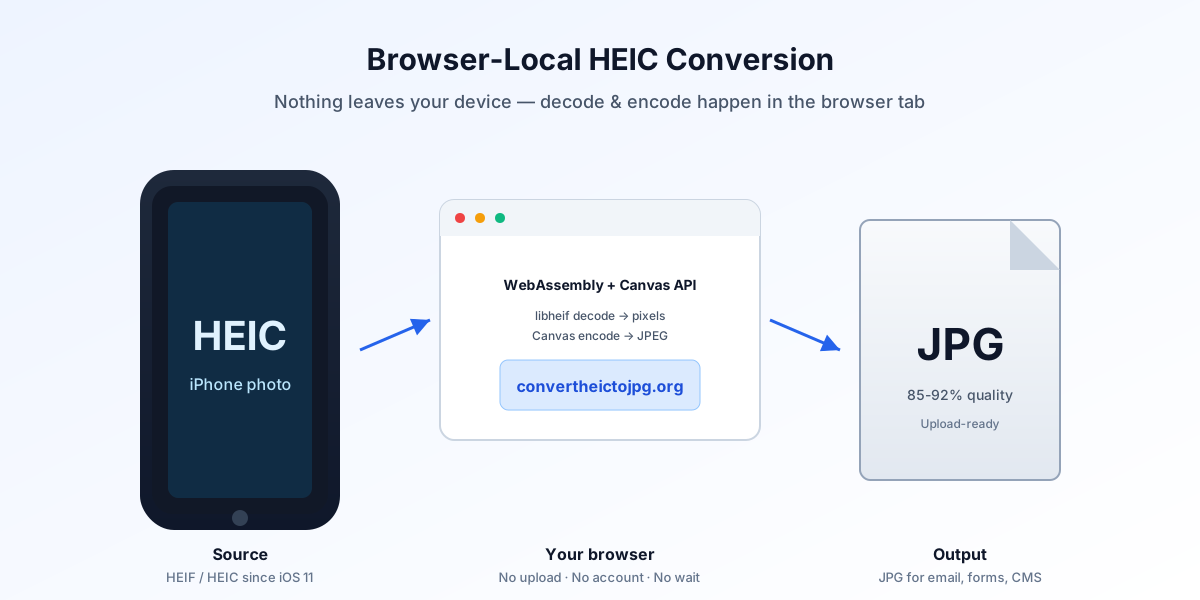
A browser-local converter still has to perform real image processing. The difference is where that work happens. Instead of uploading the HEIC file to a remote server, the browser reads the file into memory, decodes the HEIF container and HEVC-compressed image data, turns the result into raw pixels, and then re-encodes those pixels as JPEG.
The technical path usually combines two browser-era building blocks. One is WebAssembly, which lets native image-decoding code run inside the browser sandbox at near-native speed. The other is the Canvas pipeline, which browsers use to turn decoded pixels into displayable or exportable bitmap formats. In practice, that means a converter can use a HEIC decoder such as libheif compiled to WebAssembly, draw the pixels into a canvas-like buffer, and export a JPG blob for download.
A few details matter if you want realistic expectations instead of slogans:
- Decoding happens in memory, so extremely large images can stress low-RAM devices.
- The final JPG size depends on export quality.
85%to92%is a practical range for email, listings, and web uploads. - This converter re-encodes visible pixels, so EXIF, GPS, and other embedded metadata are not carried into the new JPG. Keep the original HEIC if you need that metadata later.
- Browser support is good, not infinite. Chrome 120+, Edge 120+, and Safari 17+ handle modern browser APIs more consistently than older releases.
What affects speed
A single 4 MB HEIC can finish almost instantly on a recent laptop because the browser only decodes one frame and writes one JPG. A batch of 150 images from an iPhone 13, each around 3 MB to 6 MB, takes longer mostly because memory management and download generation repeat 150 times. CPU speed matters, but repeated file handling is often the real bottleneck.
What affects output quality
JPEG is lossy, so every export setting is a tradeoff between file size and fine detail. A delivery copy at 90% quality is usually enough for forms, marketplace images, and standard web publishing. A photographer handing off client selects may prefer 95% plus a follow-up pass through the image resizer or image compressor rather than pushing quality down to 75% too early.
Practical comparison: browser-local vs cloud vs native apps
The right tool depends on batch size, privacy sensitivity, and how often you repeat the job. A simple comparison is more useful than a blanket claim that one category wins every time.
| Workflow | Best fit | Typical speed profile | Main tradeoff |
|---|---|---|---|
| Browser-local HEIC to JPG | 1 to 200 iPhone photos, private files, quick compatibility fixes | Fast once files are loaded; no upload delay | Large batches can tax browser memory |
| Cloud converter | Cross-device work, unusual formats, remote team handoff | Slower on weak networks; server speed varies | Upload privacy and queue time |
| Native desktop app | Repeated heavy use, archive projects, automation | Fast after installation and setup | Extra software to install and maintain |
| iPhone “Most Compatible” camera setting | Preventing future HEIC captures | Instant for new photos only | Files are often 30% to 50% larger from day one |
| Windows HEIF support only | Viewing HEIC without conversion | No conversion step at all | Upload sites may still reject .heic |
Cloud tools are not useless; they are just overused for small jobs. If your complaint is mainly a monthly limit, free alternative to CloudConvert is the more relevant comparison. If the issue is repeated upload prompts and format restrictions, better than Convertio gets closer to the real workflow difference.
Compatibility details that matter in real life
Windows support is better than it used to be, but “Windows can open HEIC” still does not mean every Windows app can use HEIC everywhere. A Windows 11 23H2 machine on build 22631 may preview the file in Photos after installing the right extension, while the same image still fails in an older tax portal, CRM upload dialog, or office document system. Microsoft’s HEIF support story has improved, yet upload-field validation often remains stuck on older allowlists.
Apple has not backed away from HEIC either. iOS 17, released on September 18, 2023, still keeps High Efficiency as the normal camera choice on supported devices. An iPhone 7 introduced the default in 2017, and an iPhone 15 line still benefits from the storage savings today. That means the compatibility problem will keep showing up because the camera format is efficient, not because users are doing anything unusual.
Browser version cutoffs matter more than operating-system branding. Safari 17 on macOS Sonoma or iOS 17 behaves differently from Safari 15 on an older device. Chrome 120 on Android is more capable than Chrome 96 on an old office laptop. If a converter feels slow or flaky, the first question should be browser version, not whether the file itself is “bad.” The dedicated guide on opening HEIC files on Windows 11 is still the best route when the problem is local preview rather than export.
When cloud conversion still makes sense
Remote conversion earns its place in a narrower set of cases. One is device handoff. If the original HEIC files are on a locked-down work iPhone and the only machine available for final delivery is a separate desktop, a cloud workflow can act like temporary transport. Another is format breadth. Services built for dozens or hundreds of formats can be convenient when HEIC is only one step in a larger pipeline involving TIFF, SVG, PDF, or CAD exports.
There is also a scale threshold where the browser is no longer the ideal tool. If you are processing a 20 GB archive, repeatedly exporting thousands of images, or building a scripted back-office workflow, a native desktop app or server pipeline is easier to monitor and restart. That threshold is much higher than most people assume, though. Converting a 40-photo trip album or a 120-image real-estate shoot is still well within the range where browser-local tools stay practical.
The simplest rule is to match the tool to the task size. Personal photos, ad-hoc uploads, and privacy-sensitive images lean local. Team pipelines, oversized archives, and exotic multi-format jobs lean cloud or desktop. For standard iPhone sharing, the browser-local option is usually the shortest path between “I have a .heic” and “this site finally accepts my upload.”
Recommended workflow for everyday HEIC jobs
A good workflow keeps the original, creates only the derivative you need, and avoids unnecessary recompression. That approach is safer than switching the whole camera roll to JPEG just because one site rejects HEIC.
Before you convert
- Keep the original HEIC as the archive master. HEIC is usually smaller, and you can always export another JPG later.
- Start with the HEIC to JPG tool for one-off jobs or the batch converter for a folder-sized batch.
- Choose JPG quality around
88%to92%for general sharing. Drop toward85%only when a portal has a strict size cap such as5 MBor10 MB. - Use the AI format advisor if the destination is unclear and you need a quick decision between JPG, PNG, or WebP.
After you export
- Check the actual upload requirement before making more edits. A portal that caps files at
2 MBneeds a different output than an ecommerce listing that allows12 MB. - Run the file through the image compressor if the first JPG is still too large.
- Use the image resizer when the platform wants a specific width such as
1200 pxor2000 px. - Strip metadata with the EXIF remover before publishing anything that might reveal location or device details.
- Export to HEIC to PNG instead when you need flat graphics, text-heavy screenshots, or further editing with less JPEG artifacting.
That sequence avoids a common mistake: converting first, compressing blindly, then resizing, then converting again. Every extra lossy pass can shave off detail for no gain. One careful export plus one targeted optimization step usually beats three rushed edits.
FAQ
Is browser-local conversion actually private?
Privacy is materially better because the file does not need to travel to a remote server first, but it is not a magical guarantee against every risk. The practical gain is removing the upload step entirely, which matters more for a 6 MB family photo or a 14 MB passport scan than for a public stock image.
Will a JPG look worse than the original HEIC?
A JPG can look virtually identical at sensible settings, but it is still a lossy export. For most uploads, 88% to 92% quality preserves detail well enough that the site’s own compression will be a bigger hit than your local conversion.
Should I switch my iPhone camera to Most Compatible?
Only if HEIC causes problems every week. Apple introduced HEIF/HEIC as the default in iOS 11 in 2017, and the storage savings are usually around 30% to 50%, so changing to Most Compatible can noticeably increase library size over 1,000 photos.
Why does a website reject HEIC even when Windows can open it?
File preview and file acceptance are different checks. A Windows 11 23H2 system may display HEIC after the right codec is installed, while a site uploader still allows only .jpg, .png, and .pdf based on a static extension list written years ago.
How many photos can I convert in the browser at once?
Reasonable batches are often in the tens or low hundreds rather than the thousands. A modern laptop can usually handle 50 to 200 HEIC files smoothly, but 500 high-resolution images or several files above 20 MB each can push browser memory harder than a native app would.
When should I use PNG instead of JPG after converting HEIC?
PNG is the better target when the image has text, diagrams, UI captures, or areas where JPEG artifacts would be obvious. The tradeoff is size: a PNG export can easily be 2x to 5x larger than a comparable JPG, especially for phone screenshots.
Bottom line
HEIC is efficient for capture, not universal for upload. That is why a browser-local converter is such a strong alternative to cloud tools: it solves the compatibility problem without adding account friction, queue time, or needless server exposure. For the usual job size, the better workflow is to convert locally at /, keep the HEIC original, and only add the next step you actually need.
If the file is too large, send it to /image-compressor. If the dimensions are wrong, use /image-resizer. If metadata is the real concern, use /exif-remover. That modular path is simpler than treating every .heic like it needs a full cloud pipeline.